.png?width=1041&height=415&name=logo-cert-tool%20(1).png)
Groups created by teachers or admins can be modified at any time to reflect current class rosters by following these steps:
To add or remove students from a group which has already been created, complete the following steps:
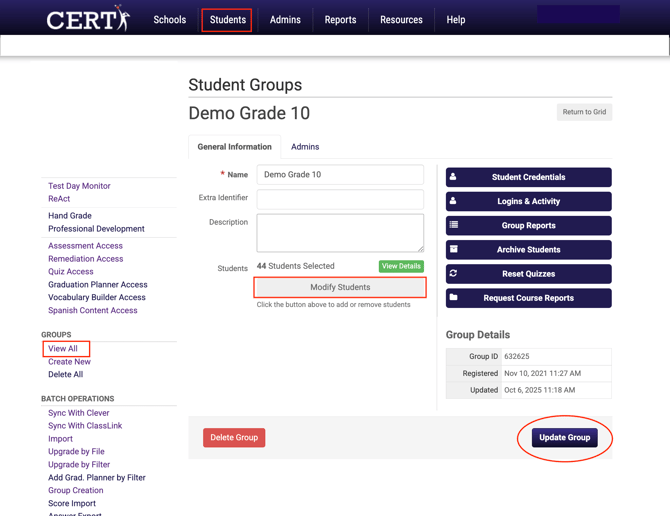
- Select View All under groups.
- Select the Group to be modified.
- Select Modify Students.
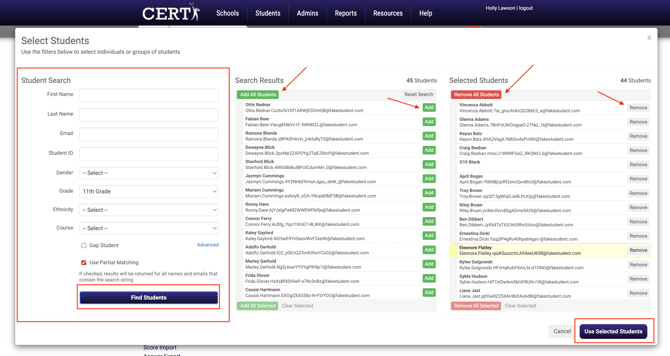
- Use the Search and Filter options to find students.
- TO ADD A STUDENT: Select the green Add button next to each student to be added to the group or select Add All Students.
- TO REMOVE A STUDENT: Select the Remove button next to each student to be removed or select Remove All Students.
- Select Use Selected Students to update the group roster.
- Make sure to select Update Group to save the changes.
Did this answer your question?