.png?width=1041&height=415&name=logo-cert-tool%20(1).png)
If school/district is using a SSO provider (i.e.: Clever, ClassLink), students must be rostered in the correct grade in your SIS and SSO or student will not appear in the correct grade. Mid-year changes to grade levels can impact accessibility
Students are permitted to advance one grade level per year. If a student needs to be rolled back to a previous grade level and there is data in that grade level, the reset option must be used to clear out old data and allow the student to assess again.
*NOTE: If buttons seen below are not enabled or if the correct grade level is not an option, email the CERT Customer Success Team support@certforschools.com to manually override the grade level.
- Select the Student tab to see the current list of students
- Select the student who needs to be moved to a different grade
- To roll the student back one grade level, select Rollback Student
- To move the student one grade higher, select Move to a Higher Grade
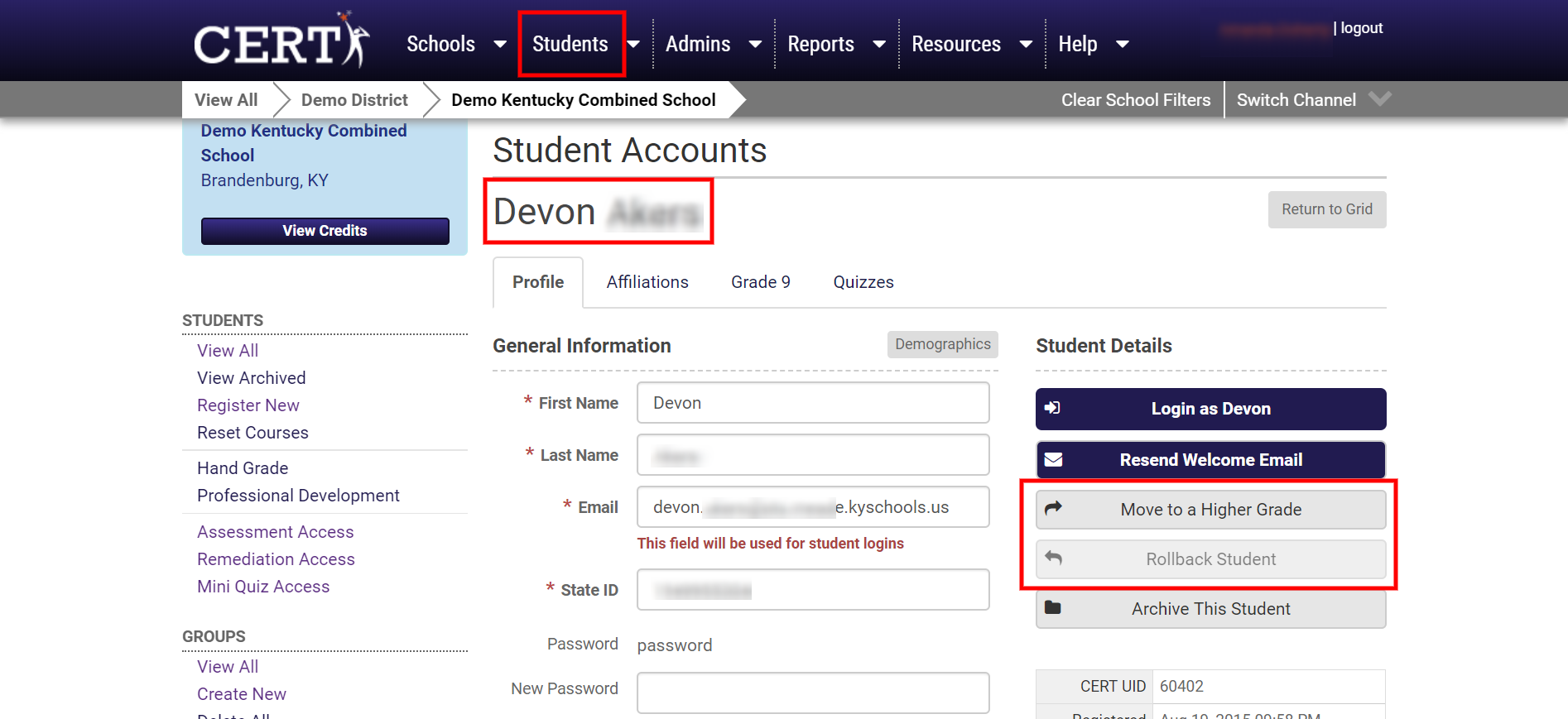
- After completing the grade-level change, click the tab of the correct grade level to see if any of the assessments have been taken previously, either because the student attended another school or is repeating a grade level
- To erase previously-taken sections, select Reset next to the chosen sections in each of the testing windows
**NOTE: Only an administrator can reset a student's score, so if you are not an administrator, contact one in your building to complete this action.**
Did this answer your question?