.png?width=1041&height=415&name=logo-cert-tool%20(1).png)
To Access the Longitudinal Report:
- Select Reports
- Choose the green Click Here to Access the New Reports Suite button under the appropriate assessment: ACT/Enhanced ACT or Digital SAT.

-
Once in the new reporting suite:
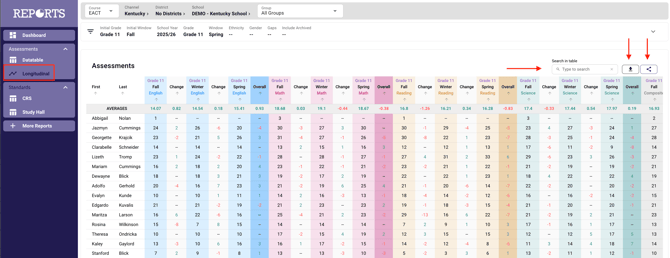
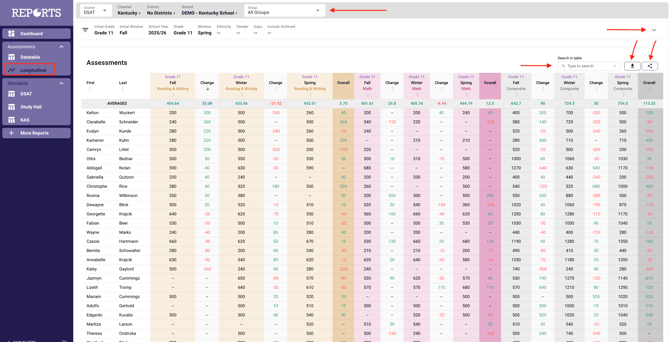
- Select Longitudinal.
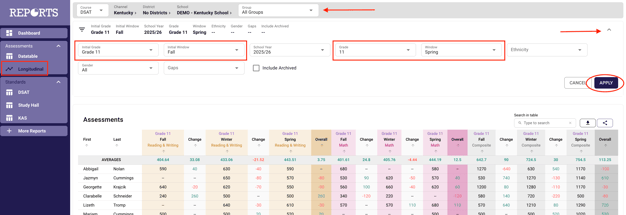
- Choose the desired Group from the tab at the top.
- Select the arrow in the upper right-hand corner to expand data filter options.
- Filter the data as desired and select apply.
- Use the features of the table to navigate the datatable.
- Averages will appear at the top of each column.
- Clicking the top row of any column will sort least to greatest or greatest to least.
- Search by student.
- Print or Export data.
- Change the desired number of students shown per page or see other students by navigating the page options at the bottom.
(Year-over-year data is not available for comparison for ACT (Legacy) Scores for students comparing performance on the CERT ACT prior to the 25-26 school year with performance on the Enhanced ACT school year 25-26 and beyond).
DSAT EXAMPLE:
EACT EXAMPLE: