.png?width=1041&height=415&name=logo-cert-tool%20(1).png)
Page appears to be glitching, words are jumbled together, image doesn't load, or assessment does not progress to the next page
If the assessment for a student appears incorrect, try the following steps to correct the issue. If the steps below do not work, contact a CERT support team member for further assistance.
- Ensure that students are using either Chrome or Firefox web browsers
- Bypass the cache on the device by holding down ctrl + shift + r
- Update the device or contact your IT personnel to force an update
- Check for wifi issues within the school
- Have the student try to complete the assessment from a different device
Student Login Doesn't Work
If the login or password for a student doesn't work, double-check his or her credentials by accessing the Account Credentials Report
- Select the Reports tab
- Under the heading Student Reports, select Account Credentials
If the credentials still do not work, access the student account and change the password by following the steps below:
- Select the student's name from the student list
- Scroll down to New Password and type in a new password
- Be sure to click Update Student before closing the window
Assessment Doesn't Display on Students' Accounts
**NOTE: Follow these steps if a large number of students cannot access an assessment.**
If the assessment doesn't display when students log in, check the following settings:
- Open the Assessment Access panel
- Check to see that the grade level you are trying to assess is Enabled
- Under Testing Environment, select Online
- Under Assessment Schedule, check the current assessment windows to see if the window is open. If not, contact a CERT support team member to adjust the window
- Click Update Assessment Settings to save changes
**NOTE: Follow these steps if one one or two students cannot access an assessment.**
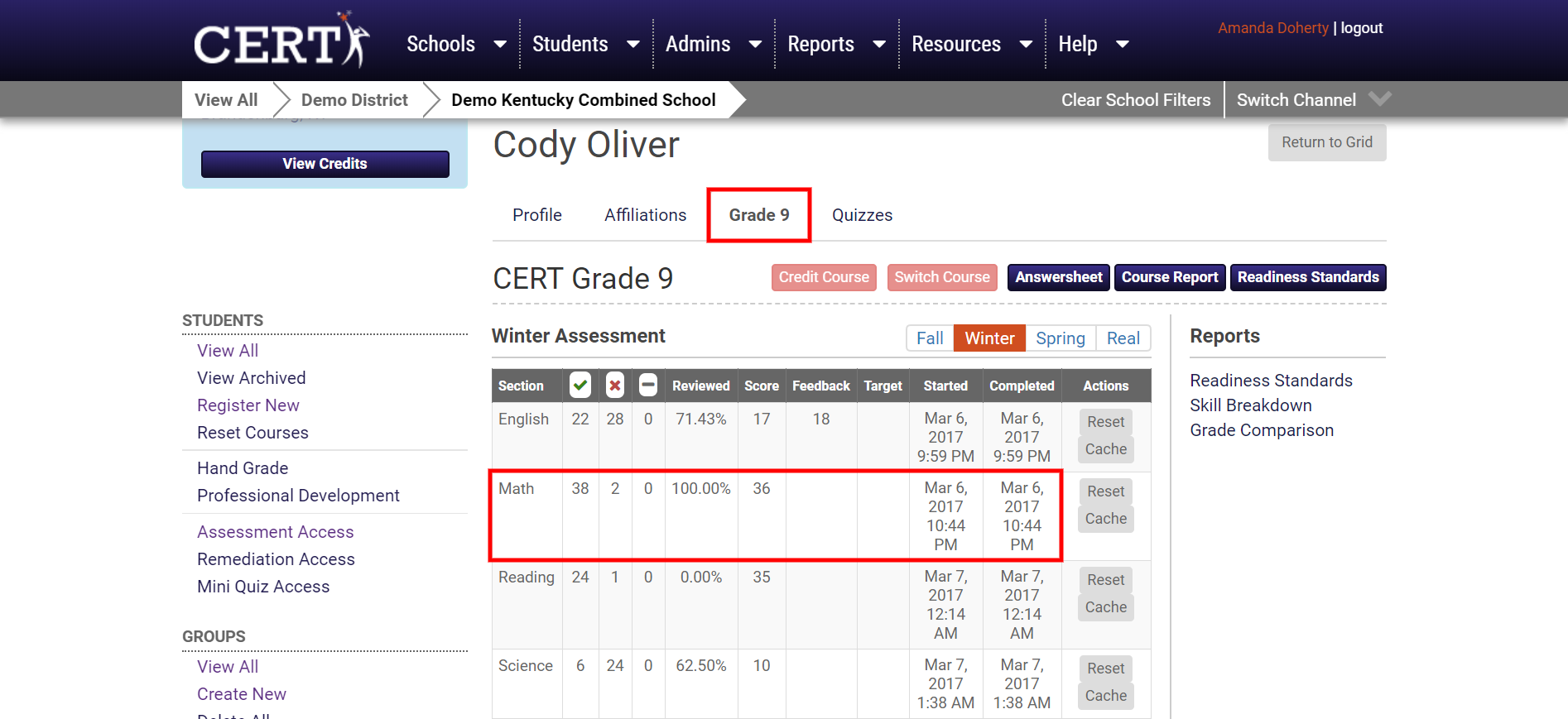
- Click on the individual student's name from the student list
- Select the current grade-level tab
- Look to see if there are already scores listed for the section your student is trying to access
- If so, make a request to a building administrator to reset the appropriate sections
Student Timer Runs Out After 4 Minutes
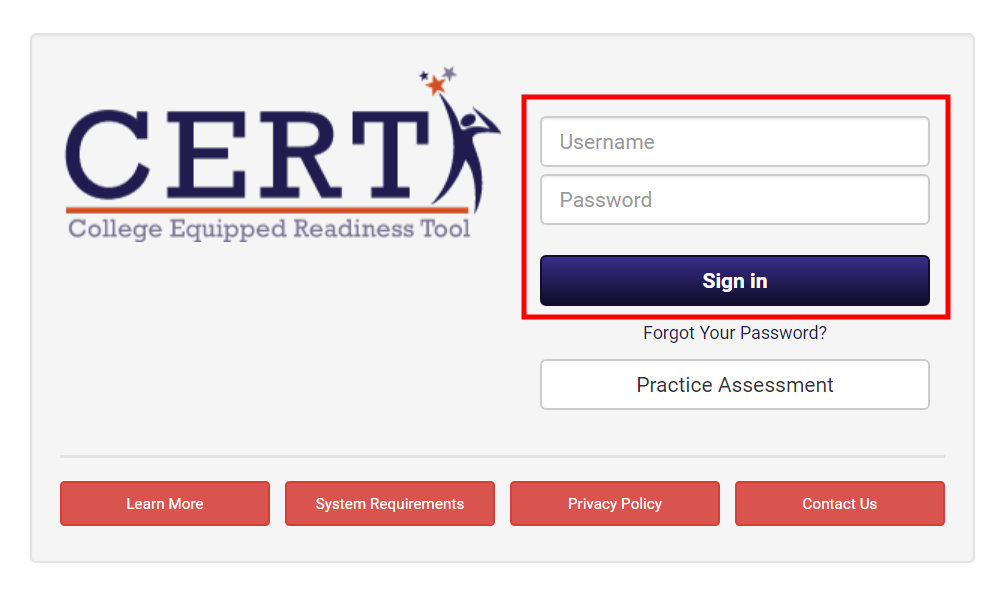
If a student complains that the assessment timed out after four minutes, this most likely means he or she was signed-in to the Practice Assessment. Please have the student log out and attempt to sign-in again by clicking Sign-In instead of Practice Assessment.
 Did this answer your question?